# Fee Settings

## Loan Fees

Click 'Fees Settings', and select 'Loan Fees' to view the list of created loan fees.

<figure><img src="https://2924842113-files.gitbook.io/~/files/v0/b/gitbook-x-prod.appspot.com/o/spaces%2FOAj97X40zqy1bWeyKGRz%2Fuploads%2FvgRBlZkFuzki73qtohZ1%2Floan%20fees.png?alt=media&#x26;token=636389d9-f7fa-4499-930a-a25715baaf0e" alt=""><figcaption></figcaption></figure>

Click 'Add New Fees' and complete the form accurately, selecting the fee type as either 'Rate' or 'Fixed Amount,' with the option to create a range when enabling 'Varies with Transaction.'

<div><figure><img src="https://2924842113-files.gitbook.io/~/files/v0/b/gitbook-x-prod.appspot.com/o/spaces%2FOAj97X40zqy1bWeyKGRz%2Fuploads%2FyIudynCYp9bacOjGbAOF%2Floan%20fees%20range.png?alt=media&#x26;token=bbc5f4d0-aa9e-4d4c-8c49-c3a6a90cc5bf" alt=""><figcaption></figcaption></figure> <figure><img src="https://2924842113-files.gitbook.io/~/files/v0/b/gitbook-x-prod.appspot.com/o/spaces%2FOAj97X40zqy1bWeyKGRz%2Fuploads%2Ftv34umK65AkctOWkdZgS%2Floan%20fees%20rate.png?alt=media&#x26;token=5a0631ad-42c6-4cec-ad2f-e1a88a27868d" alt=""><figcaption></figcaption></figure></div>

Choose the payment type as 'Upfront' (where the fee is paid in full before the loan is disbursed) or 'Disbursement' (where the fee is deducted from the loan amount at the time of disbursement) or payment (where the fee is deducted whenever a loan payment takes place)

## Transaction Charges

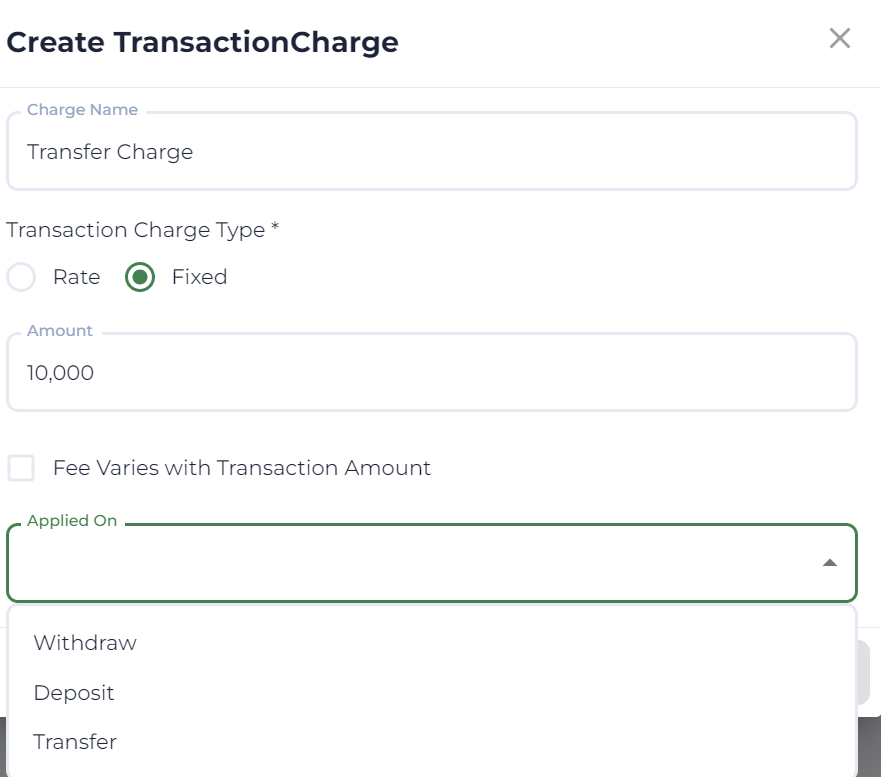
Click on "Transaction Charges" to view the list of transaction fees, and you'll also find a button labeled "Add New Transaction Charge" that allows you to create charges applicable to withdrawal, deposit, and transfer transactions.

<figure><img src="https://2924842113-files.gitbook.io/~/files/v0/b/gitbook-x-prod.appspot.com/o/spaces%2FOAj97X40zqy1bWeyKGRz%2Fuploads%2FFCAaF4lUQbKhNgPIR0F3%2Ftransaction%20chagers.png?alt=media&#x26;token=f75bc485-c232-4bfe-abb6-7fdb4cb359c8" alt=""><figcaption></figcaption></figure>

<figure><img src="https://2924842113-files.gitbook.io/~/files/v0/b/gitbook-x-prod.appspot.com/o/spaces%2FOAj97X40zqy1bWeyKGRz%2Fuploads%2FJcWw45kccqCTw0qipT9N%2Fnew%20transaction%20charge.png?alt=media&#x26;token=d38eb702-92ea-4af1-85af-5f42cb8f562f" alt="" width="375"><figcaption><p>Creating a new transaction charge</p></figcaption></figure>

### Attaching Transaction Fees To Savings Products

<figure><img src="https://2924842113-files.gitbook.io/~/files/v0/b/gitbook-x-prod.appspot.com/o/spaces%2FOAj97X40zqy1bWeyKGRz%2Fuploads%2FGju1bQq1cwAzxbNGE31V%2FScreenshot%20(944).png?alt=media&#x26;token=9b5f3e9a-1215-4f26-a69d-690a9488d455" alt="" width="375"><figcaption></figcaption></figure>

In 'Applies To,' select 'Savings Product,' then search for and choose the savings products to which you want the charge to apply.

## Account Opening Fees

To view the account opening fees, click on "Account Opening Fees," and a display of existing fees will be presented.

<figure><img src="https://2924842113-files.gitbook.io/~/files/v0/b/gitbook-x-prod.appspot.com/o/spaces%2FOAj97X40zqy1bWeyKGRz%2Fuploads%2FYsCeMeDzzLXilDwEk2Dw%2FAccount%20Opening%20fees.png?alt=media&#x26;token=15303348-565f-4969-9e3e-9af90346288e" alt=""><figcaption></figcaption></figure>

Upon clicking "General Settings," you will be prompted to configure whether you want to impose account opening fees, specify the collection method for these fees, and determine whether it's mandatory for clients to clear the fee to activate their accounts.

<figure><img src="https://2924842113-files.gitbook.io/~/files/v0/b/gitbook-x-prod.appspot.com/o/spaces%2FOAj97X40zqy1bWeyKGRz%2Fuploads%2FzjmAH6Hyex9XNWMUyL5Y%2FGeneral%20Settings%20account%20opening.png?alt=media&#x26;token=ce3de8c6-1f80-4411-ac8b-d8faaefa4235" alt="" width="375"><figcaption></figcaption></figure>

To add a new fee, click 'Add New Fees,' fill in the required information, select the fee type, specify the recipients, and submit the form.

<div><figure><img src="https://2924842113-files.gitbook.io/~/files/v0/b/gitbook-x-prod.appspot.com/o/spaces%2FOAj97X40zqy1bWeyKGRz%2Fuploads%2FjBXT8qDFMitgud6gnATy%2FCreate%20Account%20opening%20fee.png?alt=media&#x26;token=173d400a-20dc-4553-8f90-41a91c07c0df" alt=""><figcaption></figcaption></figure> <figure><img src="https://2924842113-files.gitbook.io/~/files/v0/b/gitbook-x-prod.appspot.com/o/spaces%2FOAj97X40zqy1bWeyKGRz%2Fuploads%2F6GRAxY7JwjiS5JnqfAiV%2Fcreate%20membership%20fee.png?alt=media&#x26;token=a9bf8c21-7794-4b46-9e2a-1199402e83f4" alt=""><figcaption></figcaption></figure></div>

## Recurring Fees

Click on 'Fees Settings,' select 'Recurring Fees,' and you'll see a display of existing recurring fees. To add a new one, click on 'Add New Recurring Fees,' accurately fill in the form, and save.

{% hint style="info" %}
Recurring fees are charges that occur at regular intervals and are typically associated with ongoing services or subscriptions.
{% endhint %}

<figure><img src="https://2924842113-files.gitbook.io/~/files/v0/b/gitbook-x-prod.appspot.com/o/spaces%2FOAj97X40zqy1bWeyKGRz%2Fuploads%2FD0vTARl4hCSEuQ6f0xF4%2FRecurring%20Fees.png?alt=media&#x26;token=cf219a02-977e-4ed5-b7d4-d2c6e89069f5" alt=""><figcaption></figcaption></figure>

Click the 'Action' button to edit or delete.

<figure><img src="https://2924842113-files.gitbook.io/~/files/v0/b/gitbook-x-prod.appspot.com/o/spaces%2FOAj97X40zqy1bWeyKGRz%2Fuploads%2FnO8n05Pb3H5YB2HtFFKw%2FRecurring%20action%20button.png?alt=media&#x26;token=d1c6aa47-bc35-4ad5-b3e3-3dc1843d68e3" alt=""><figcaption></figcaption></figure>